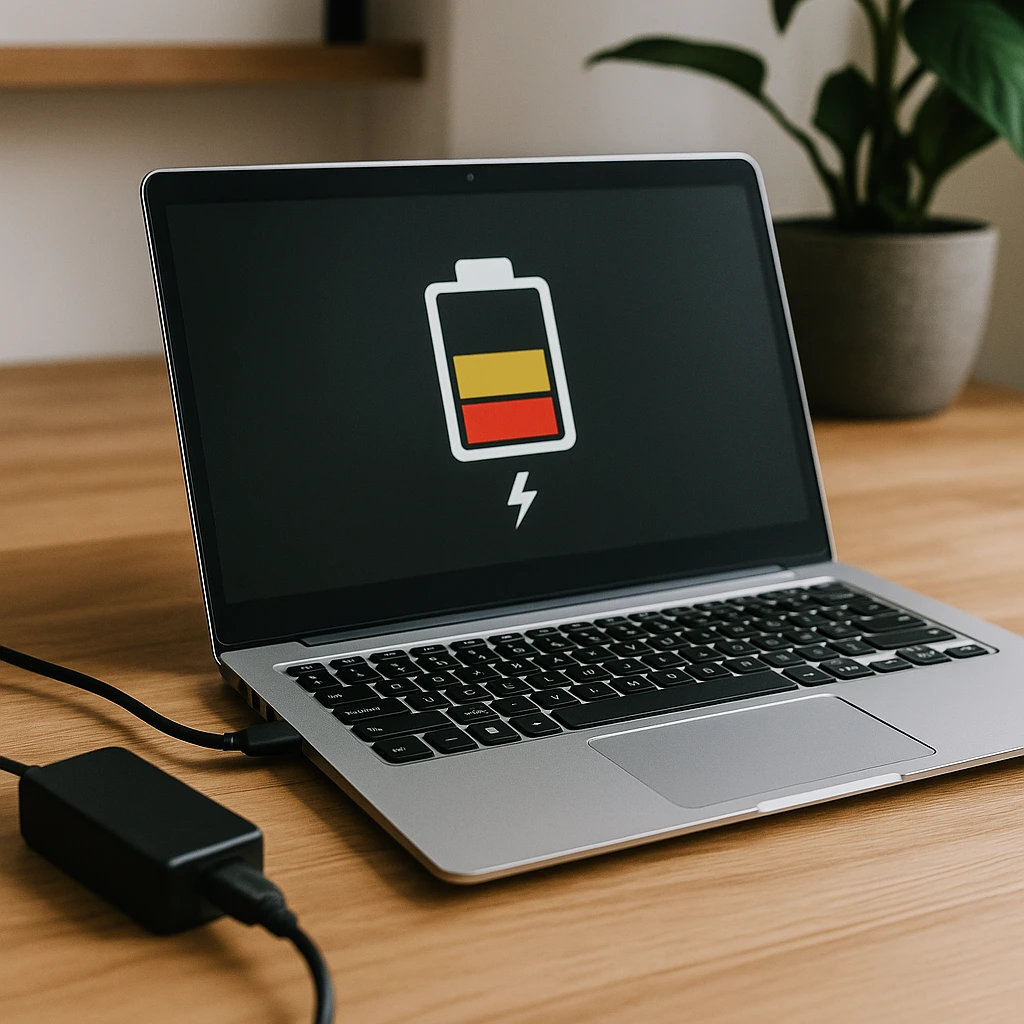
5 Ways to Fix Laptop Battery Not Charging – Troubleshooting Steps That Often Work
Disclosure: This post contains affiliate links. LaptopVoyager.com participates in the Amazon Associates Program and may earn commissions on qualifying purchases, at no extra cost to you.
Last Updated: March 2026
A laptop battery that isn’t charging can interrupt work, travel, or study sessions. In many cases, the issue isn’t a failed battery but a charging configuration, adapter problem, or system setting that prevents the battery from receiving power.
This guide explains several common troubleshooting steps that often resolve charging issues. The steps are based on typical laptop charging systems used by major manufacturers.
👉 If you want a broader overview of how laptop charging systems work, start with the laptop charging guide. link-rules
🔍 1. Check the Charger and Power Cable
The first step is verifying that the charger and cable are working correctly.
Laptop chargers can fail due to damaged cables, worn connectors, or internal adapter issues. Inspect the cable for fraying or loose connectors, and confirm the charger is securely connected to both the laptop and the wall outlet.
If your laptop supports USB-C charging, trying a compatible charger can help determine whether the original adapter is the cause.
🔍 2. Restart the Laptop
Temporary software glitches can occasionally prevent the battery from charging properly.
Restarting the system allows the operating system to reload power management drivers and reset battery monitoring systems. Many laptops restore normal charging behavior after a simple reboot.
Manufacturers often include built-in power management controls that interact with battery charging, so restarting can refresh these processes.
🔍 3. Check Battery Health Status
Battery health monitoring tools built into operating systems can help identify battery degradation or charging problems.
For example, some systems provide battery reports that show cycle counts, capacity levels, and health indicators. These metrics help determine whether the battery is functioning normally.
If you want detailed steps, our guide on how to check laptop battery health explains the process for different operating systems.
🔍 4. Inspect Charging Ports and Connections
Charging ports can accumulate dust or debris over time, which may prevent stable power delivery.
USB-C and barrel charging ports rely on clean electrical contacts. A careful inspection using a flashlight may reveal lint or debris that interferes with the connection.
If debris is present, cleaning the port gently with compressed air can sometimes restore normal charging behavior.
🔍 5. Check Power Management Settings
Many laptops include power management features designed to extend battery lifespan.
Some manufacturers allow users to limit charging to around 80% to reduce battery wear. If this feature is enabled, the laptop may appear not to charge even though it is operating normally.
Understanding these charging behaviors is helpful when diagnosing issues. Our guide on why a laptop battery may drain while charging explains situations where power usage exceeds charging input.
📌 Key Takeaways
- Charging issues often come from cables, ports, or software settings
- Restarting the laptop can resolve temporary charging glitches
- Battery health tools can reveal degradation or cycle wear
- Power management features may intentionally limit charging
🟢 FAQs
Q: Why does my laptop say “plugged in but not charging”?
Some laptops limit charging to protect battery health, or the charger may not provide enough wattage for the device.
Q: Can a faulty charger stop the battery from charging?
Yes. Damaged cables, worn connectors, or incorrect wattage can prevent stable charging.
Q: When should a laptop battery be replaced?
Battery replacement may be necessary when battery capacity drops significantly or when the battery no longer holds a reliable charge.
✅ Conclusion
A laptop battery that won’t charge doesn’t always mean the battery has failed. Charging problems often result from adapter issues, software settings, or connection problems.
By checking the charger, system settings, and battery health, many charging issues can be identified and resolved without replacing hardware.