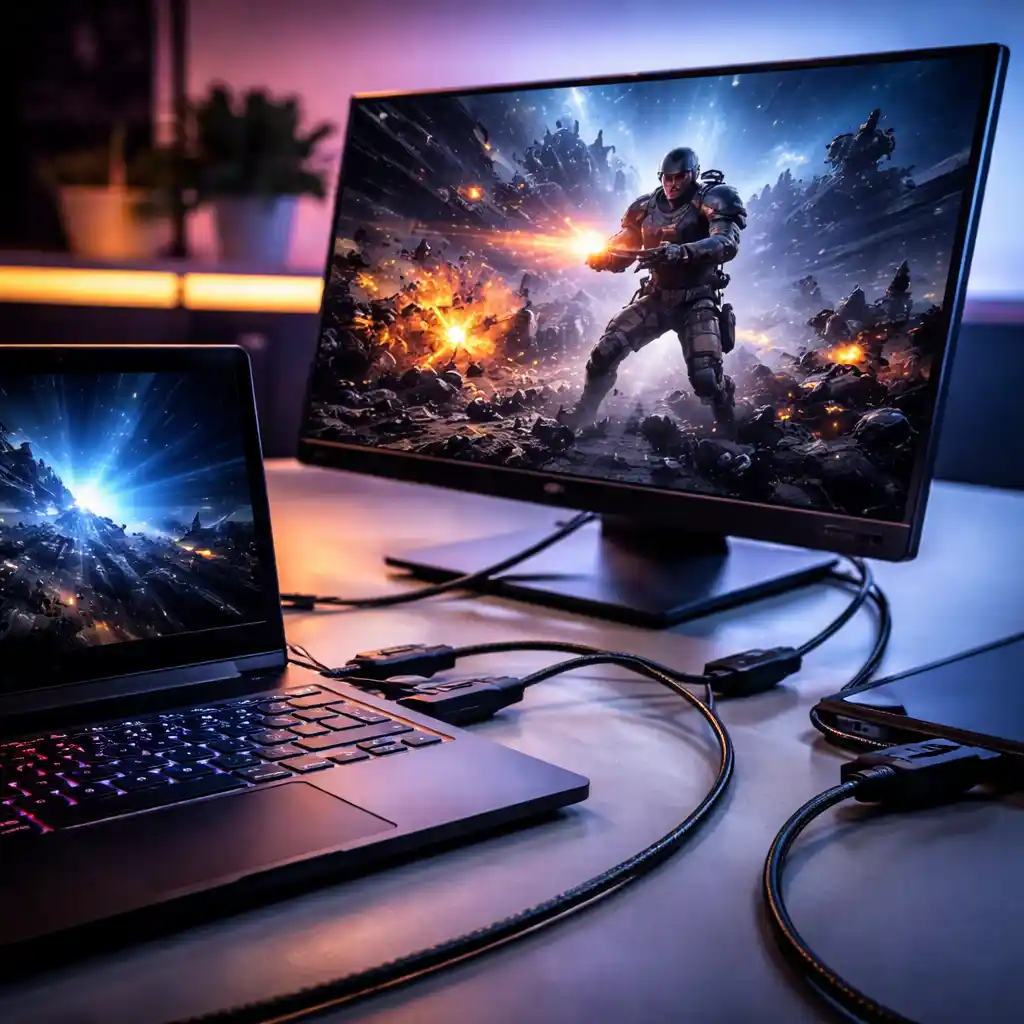
Best Connection for Laptop to Gaming Monitor – HDMI vs DisplayPort Explained
Disclosure: This post contains affiliate links. LaptopVoyager.com participates in the Amazon Associates Program and may earn commissions on qualifying purchases, at no extra cost to you.
Last Updated: March 2026
Connecting your laptop to a gaming monitor isn’t just about plugging in a cable. The type of connection you use can affect refresh rate, resolution, and overall gaming performance.
Modern laptops and monitors support multiple connection types, including HDMI, DisplayPort, and USB-C. Each option is designed for different use cases, and choosing the right one helps you get the most out of your setup.
👉 If you’re exploring monitor options, see our guide to best gaming monitors
This guide explains the best connection types for laptop gaming and how to choose the right one based on your hardware.
📌 Key Takeaways
- DisplayPort is often designed to support higher refresh rates and advanced gaming features
- HDMI offers broad compatibility but may have limitations depending on version
- USB-C can combine power and display in a single cable on supported laptops
- The best connection depends on your laptop’s ports and monitor capabilities
- Matching cable type to monitor specs ensures optimal performance
🔍 DisplayPort – Best for High Performance Gaming
DisplayPort is commonly used in gaming setups because it supports higher bandwidth compared to many HDMI versions.
According to manufacturer specifications, DisplayPort connections are often required to achieve maximum refresh rates on gaming monitors, especially at 144Hz, 240Hz, or higher resolutions.
DisplayPort also supports features like adaptive sync technologies, which help reduce screen tearing during gameplay.
For users who prioritize performance and smooth visuals, DisplayPort is typically the preferred option when available.
🔍 HDMI – Best for Compatibility and Simplicity
HDMI is the most widely supported connection type across laptops, monitors, and TVs.
Modern HDMI standards (such as HDMI 2.0 and HDMI 2.1) support high resolutions and refresh rates. However, performance depends on both the laptop’s output and the monitor’s input specifications.
According to manufacturer documentation, some HDMI ports may limit refresh rates compared to DisplayPort, especially on older devices.
HDMI is still a practical option for general gaming, particularly when compatibility is more important than maximum performance.
👉 For a deeper comparison, see hdmi vs displayport gaming monitors
🔍 USB-C and Thunderbolt – Single Cable Convenience
Many modern laptops include USB-C or Thunderbolt ports that support video output.
These connections can:
- Deliver display signal
- Transfer data
- Provide power (in some cases)
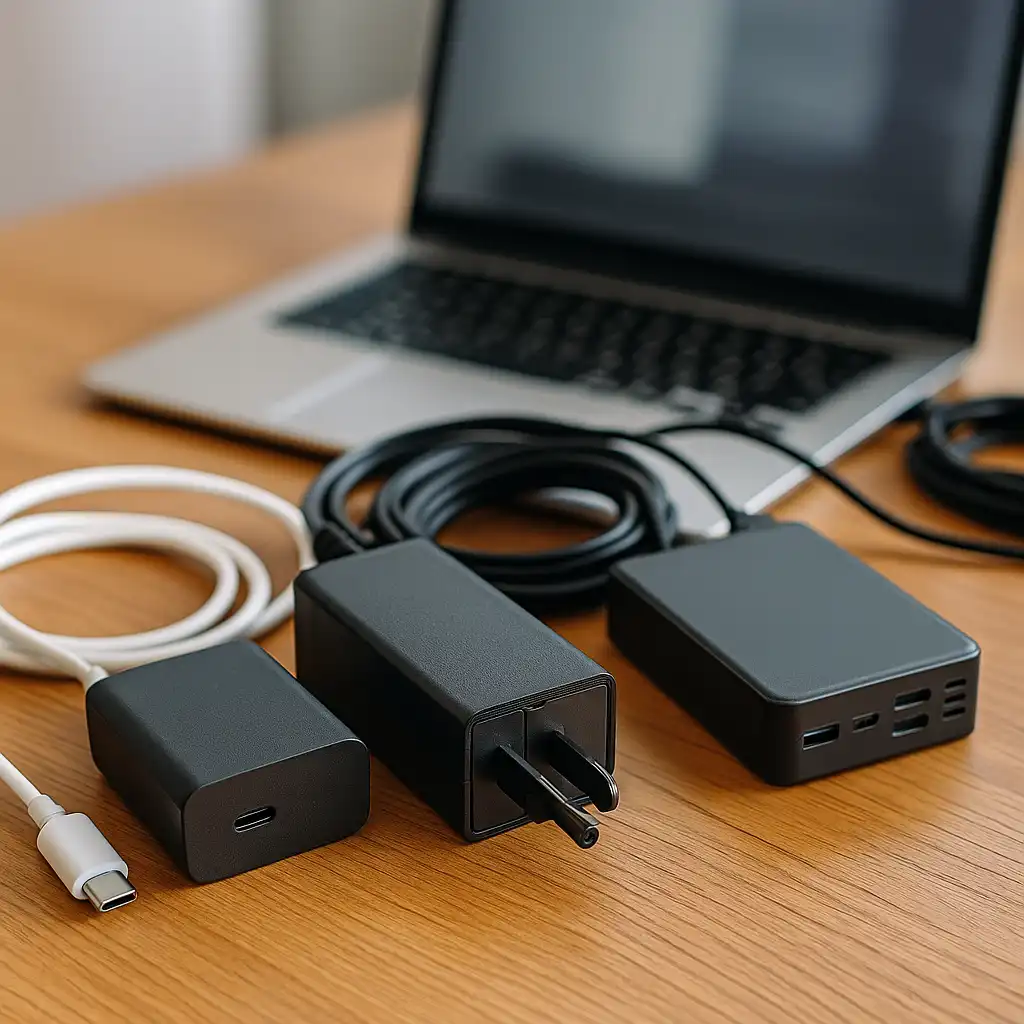
According to manufacturer specifications, USB-C with DisplayPort Alt Mode allows laptops to connect to monitors using a single cable.
This setup is especially useful for portable or minimalist desk configurations, where reducing cable clutter is a priority.
🔍 Matching Connection Type to Your Monitor
Choosing the best connection depends on both your laptop and monitor capabilities.
For example:
- High-refresh monitors often require DisplayPort for full performance
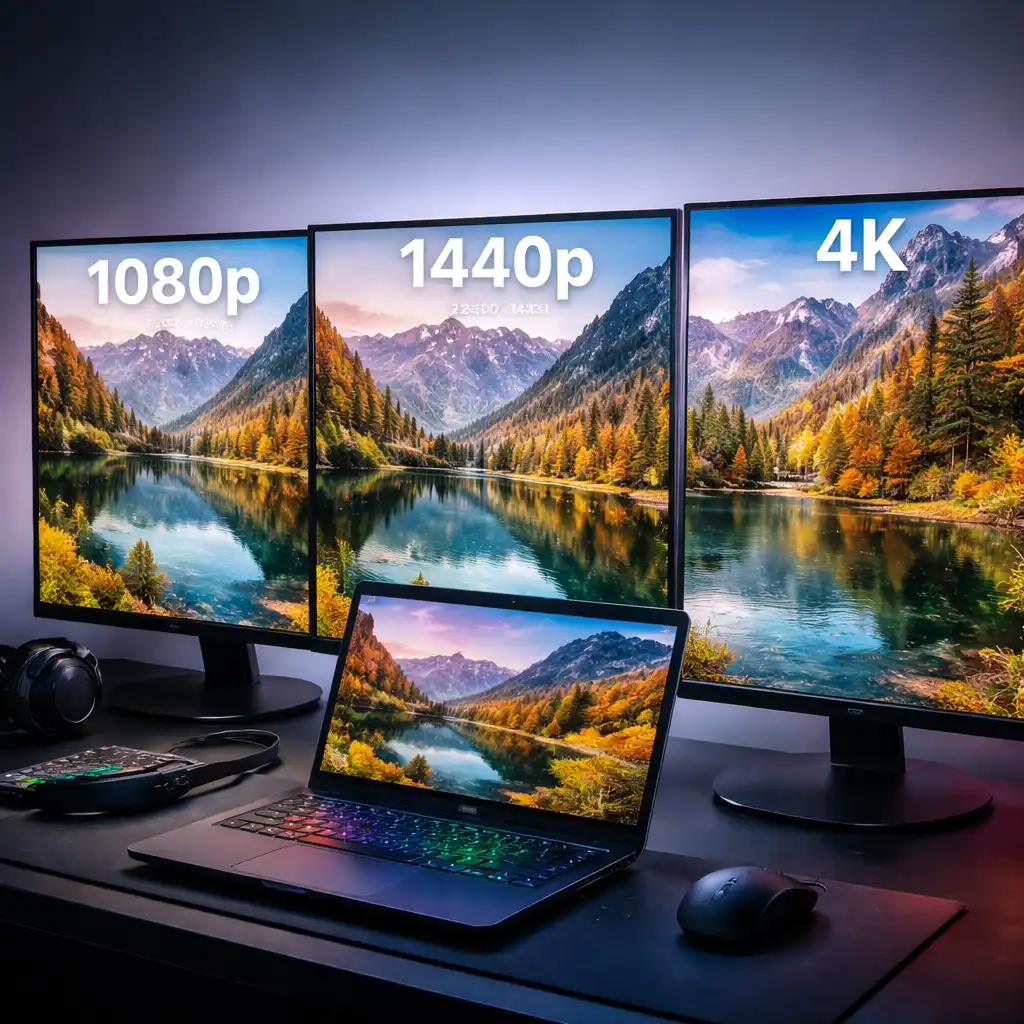
- 4K monitors may need HDMI 2.1 or DisplayPort for higher frame rates
- Portable monitors frequently rely on USB-C connections
Published benchmarks and manufacturer documentation show that using the correct port and cable ensures the monitor runs at its intended specifications.
🔍 Common Setup Mistakes to Avoid
Some connection issues come from mismatched hardware rather than the monitor itself.
Common mistakes include:
- Using older HDMI versions that limit refresh rate
- Connecting through adapters that reduce signal quality
- Not enabling the correct refresh rate in system settings
Understanding your laptop’s output capabilities helps avoid these problems and ensures consistent performance.
👉 If you need a setup guide, see how to connect a laptop to a monitor
🔍 Which Connection Should You Use?
There is no single “best” option for every setup.
- Choose DisplayPort if your laptop and monitor both support it and you want maximum performance
- Choose HDMI for compatibility and ease of use
- Choose USB-C for portability and simplified connections
Each option is designed for different priorities, so the best choice depends on your specific hardware and use case.
🟢 FAQs
Q: Is DisplayPort better than HDMI for gaming?
DisplayPort often supports higher refresh rates and advanced features, but the best option depends on the versions supported by your devices.
Q: Can HDMI support 144Hz or 240Hz?
Some HDMI versions can support high refresh rates, but according to manufacturer specifications, this depends on the exact standard and hardware.
Q: Do all laptops support DisplayPort?
Not all laptops include a DisplayPort output, but many support DisplayPort through USB-C with compatible adapters or cables.
Q: Is USB-C good for gaming monitors?
USB-C can work well for gaming monitors if it supports DisplayPort Alt Mode and sufficient bandwidth.
✅ Conclusion
The best connection for a laptop to a gaming monitor depends on your hardware and performance goals. Based on specifications and manufacturer documentation, DisplayPort is typically preferred for high refresh rates, while HDMI offers broader compatibility and USB-C provides convenience.
Choosing the right connection ensures your monitor runs at its intended resolution and refresh rate, helping you get the best possible performance from your setup.