Can You Draw on a Touchscreen Laptop? – Stylus Support Explained
Disclosure: This post contains affiliate links. LaptopVoyager.com participates in the Amazon Associates Program and may earn commissions on qualifying purchases, at no extra cost to you.
Last Updated: February 2026
Many touchscreen laptops support basic tapping and swiping, but drawing requires more than just a touch-enabled display. The key difference is whether the laptop supports an active stylus with pressure sensitivity, not just finger input.
Some touchscreen models are designed primarily for navigation, while others include digitizer technology specifically built for writing and sketching.
👉 If you’re comparing full-featured models, our guide to the best touchscreen laptops outlines which types support pen input.
🔍 Touchscreen vs Pen-Enabled Displays
Not all touchscreen laptops support drawing with precision.
Standard touchscreens detect simple contact, similar to a smartphone. Pen-enabled laptops include additional digitizer layers that detect pressure levels, tilt angles, and palm rejection.
Without active stylus support, drawing will feel limited and less accurate.
🔍 Active Stylus vs Passive Stylus
A passive stylus works like a finger. It does not support pressure sensitivity or fine control.
An active stylus, on the other hand, communicates electronically with the display. Many models support thousands of pressure levels, allowing lighter or darker strokes depending on applied force.
For serious drawing, an active stylus is essential.
🔍 2-in-1 Laptops and Drawing
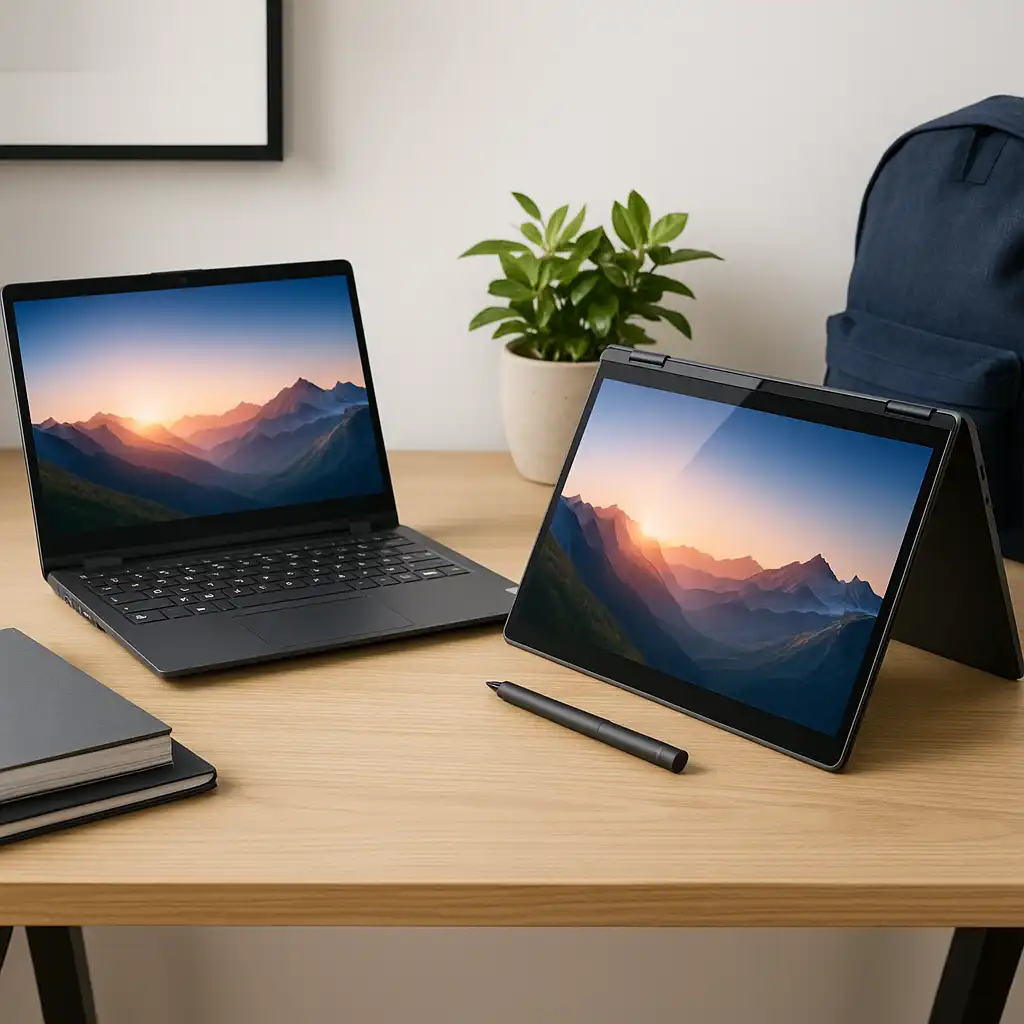
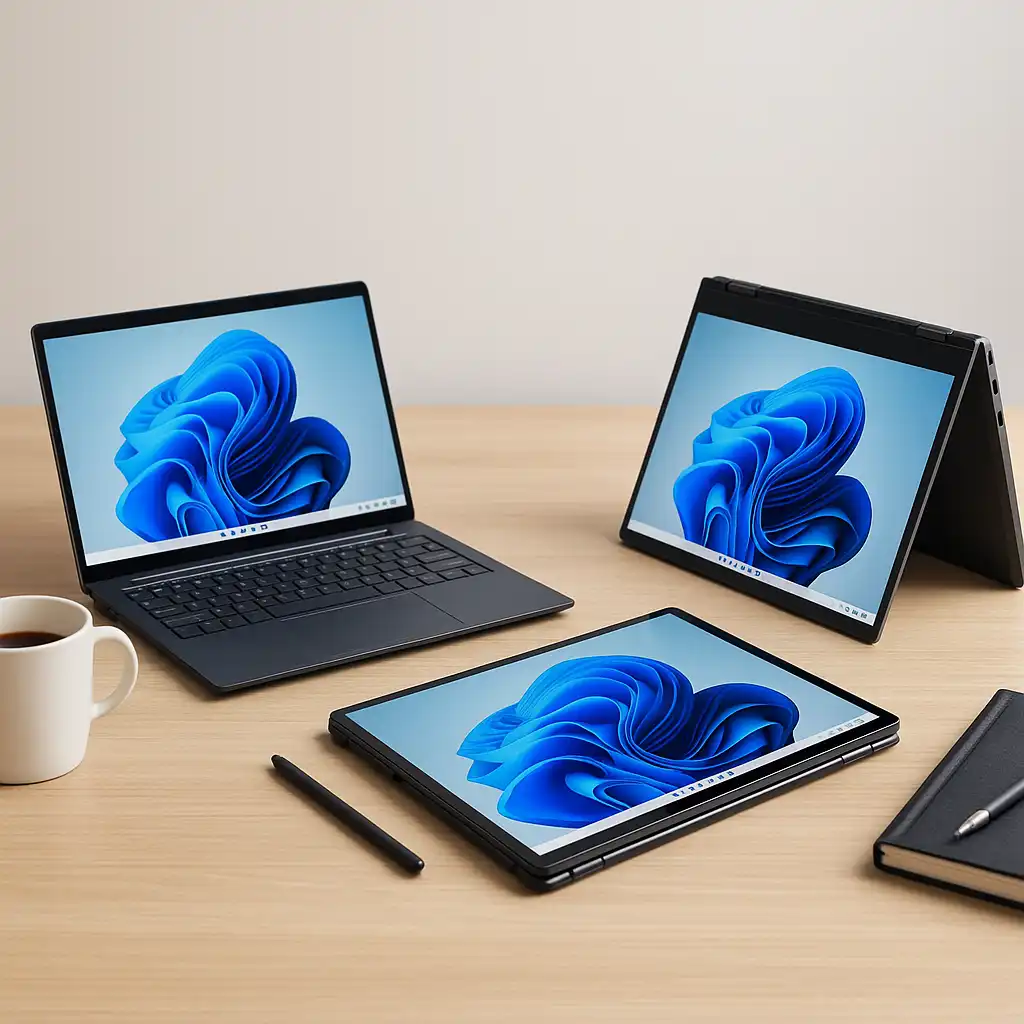
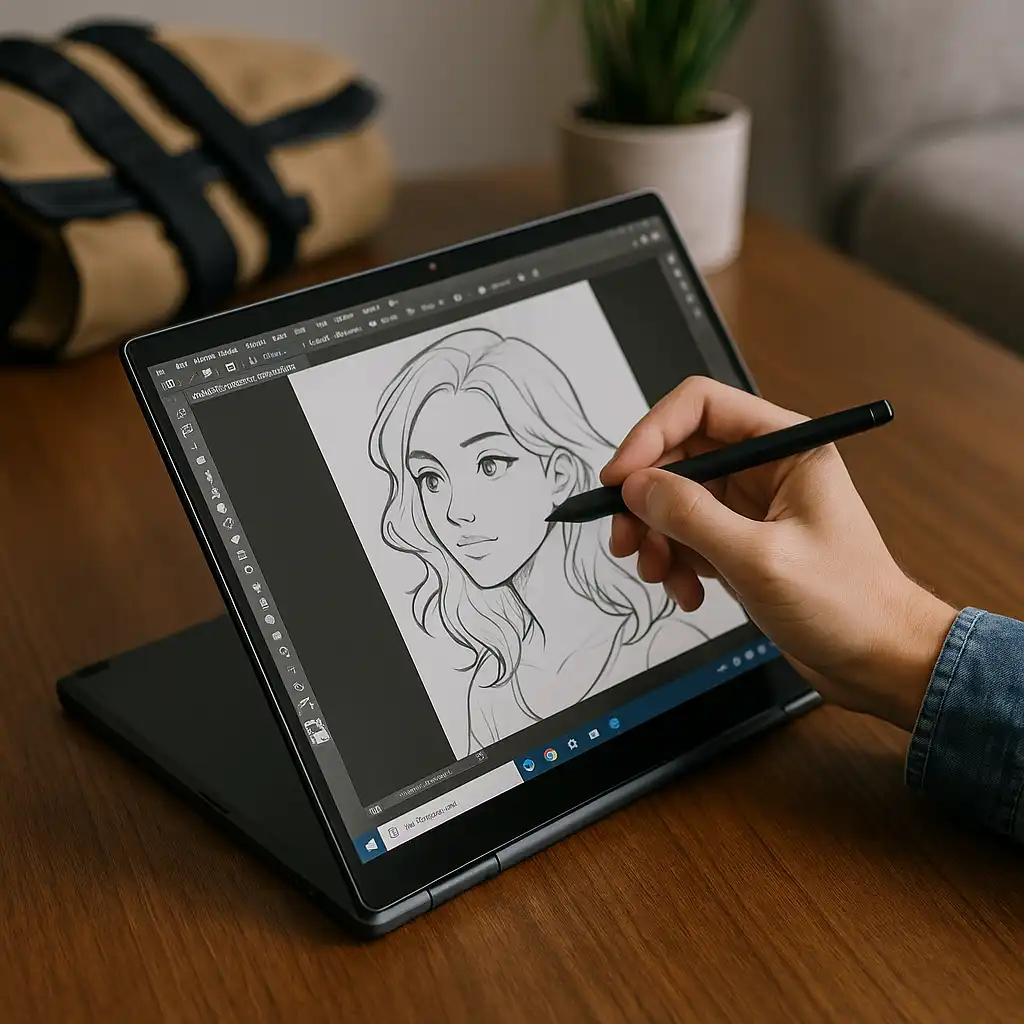
Convertible 2-in-1 laptops are often better suited for drawing because they can fold into tablet mode.
This allows a flatter surface, which feels more natural for sketching. Many pen-focused models are designed specifically for note-taking, digital art, and classroom use.
🔍 What Specs Matter for Drawing?
If drawing is your goal, look for:
- Active stylus support (often sold separately or bundled)
- High-resolution display (Full HD or higher)
- IPS or OLED panels for accurate colors
- At least 8GB–16GB RAM for smooth app performance
If you’re exploring pen-compatible devices specifically, see our guide to the best touchscreen laptop with pen.
🔍 Can You Use Drawing Apps?
Yes—if the laptop supports pen input.
Windows-based touchscreen laptops with pen support typically work with apps like Microsoft OneNote, Sketchbook, or professional illustration software. Performance depends on CPU, RAM, and storage specifications.
📌 Key Takeaways
- Not all touchscreen laptops support drawing
- Active stylus support is required for precision
- Pressure sensitivity improves drawing control
- 2-in-1 models often feel more natural for sketching
- RAM and display quality affect drawing performance
🟢 FAQs
Q: Can I draw on any touchscreen laptop?
No. You need a model that supports an active stylus with pressure sensitivity.
Q: Is a passive stylus good for drawing?
It works for basic input but lacks precision and pressure control.
Q: Do touchscreen laptops come with a pen?
Some bundles include a stylus, but many models sell it separately.
Q: Are touchscreen laptops good for digital art?
Pen-enabled models with strong specs can support digital art applications effectively.
✅ Conclusion
You can draw on a touchscreen laptop—but only if it supports active stylus input. Basic touchscreens are built for navigation, while pen-enabled models are designed for note-taking and creative work.
If drawing is important to you, prioritize stylus compatibility, display quality, and sufficient memory over touch capability alone.