How to Clean Touchscreen Laptop – Safe Step-by-Step Guide
Disclosure: This post contains affiliate links. LaptopVoyager.com participates in the Amazon Associates Program and may earn commissions on qualifying purchases, at no extra cost to you.
Last Updated: February 2026
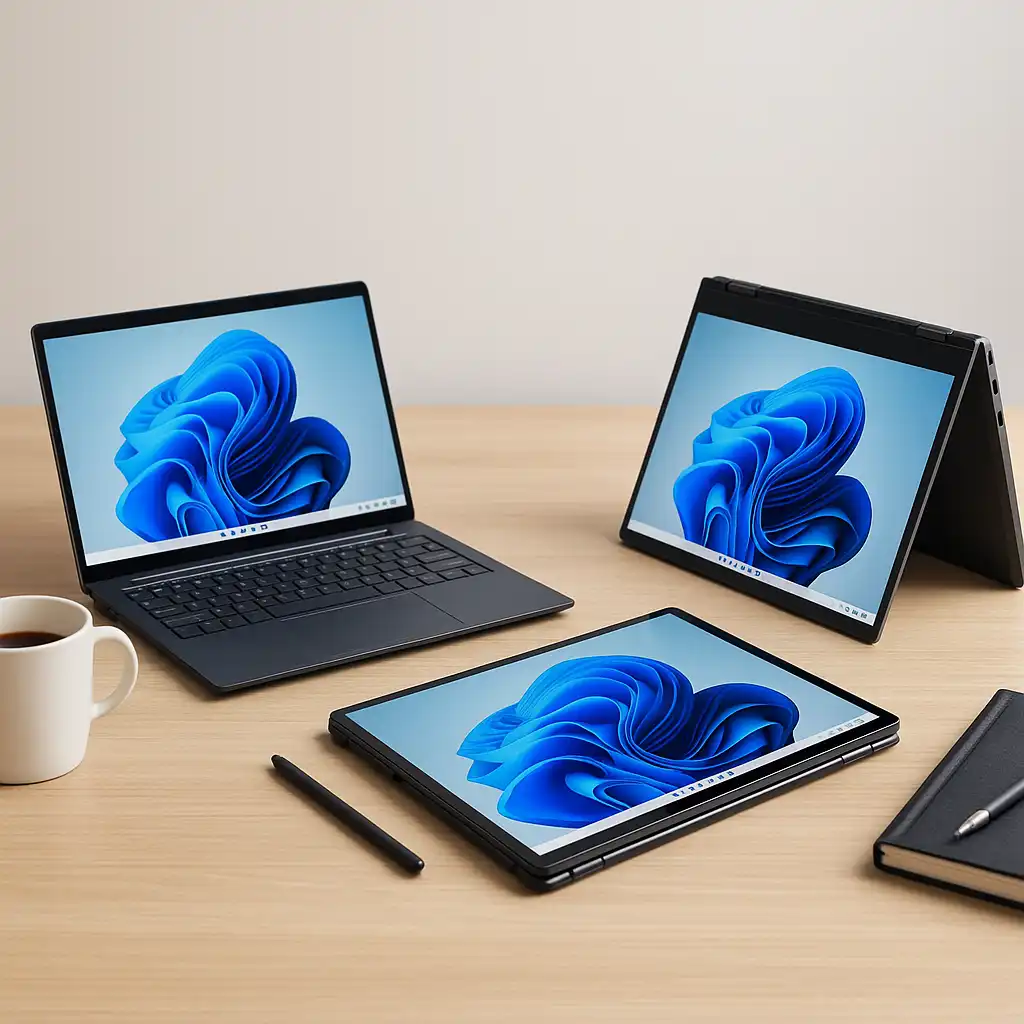
Touchscreen laptops collect fingerprints, smudges, and dust much faster than traditional displays. Because you interact directly with the screen, proper cleaning is essential to maintain clarity and responsiveness.
The key is using the right materials and avoiding harsh chemicals that can damage protective coatings.
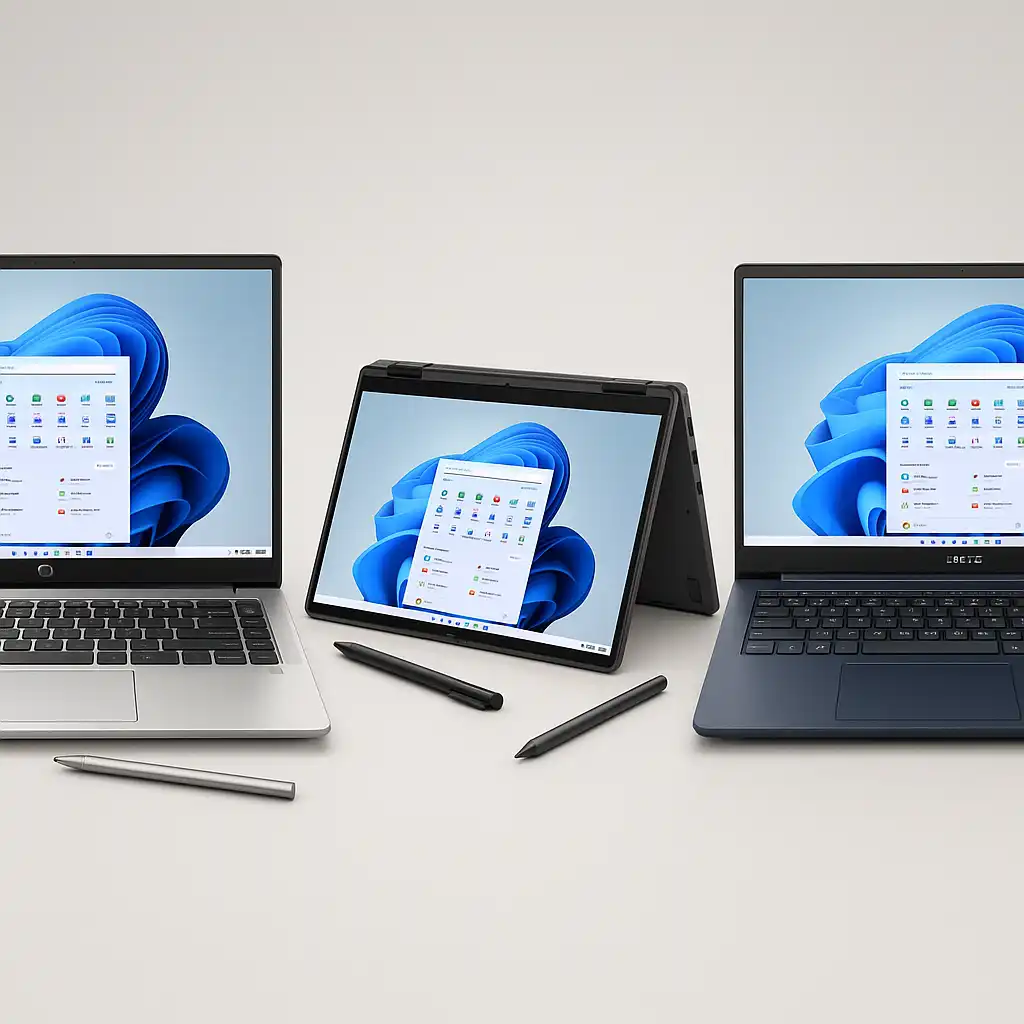
👉 If you’re comparing durable touch models, our guide to the best touchscreen laptops explains which builds resist wear better over time.
🔍 Why Touchscreens Require Extra Care
Most touchscreen laptops include a glass layer with an anti-glare or oleophobic coating.
These coatings help reduce fingerprints and reflections, but they can wear down if exposed to ammonia-based cleaners or abrasive cloths. Using improper cleaning solutions may cause permanent screen damage.
Gentle cleaning methods preserve both clarity and touch sensitivity.
🔍 What You’ll Need
For safe cleaning, use:
- A microfiber cloth (lint-free)
- Distilled water or a 50/50 mix of distilled water and isopropyl alcohol (70% or less)
- A spray bottle (optional)
Avoid paper towels, window cleaners, bleach, or household chemical sprays.
🔍 Step-by-Step Cleaning Process
- Power off and unplug the laptop. This reduces the risk of accidental input and makes smudges easier to see.
- Use a dry microfiber cloth first. Gently wipe the screen in circular motions to remove dust.
- Lightly dampen the cloth if needed. Never spray liquid directly onto the screen. Apply moisture to the cloth instead.
- Wipe gently. Avoid pressing too hard, as excessive pressure can stress the display panel.
- Let the screen air dry. Ensure the display is fully dry before powering the laptop back on.
Regular light cleaning is better than aggressive scrubbing.
🔍 How Often Should You Clean It?
Frequency depends on usage.
If you use touch input daily, light cleaning once or twice per week helps maintain visibility. Heavier cleaning should only be done when visible buildup appears.
Over-cleaning with harsh products causes more harm than occasional smudges.
🔍 What to Avoid
Never use:
- Ammonia-based glass cleaners
- Bleach or abrasive chemicals
- Rough fabrics or paper towels
- Excess moisture
Liquid seeping into display edges can damage internal components.
If your touchscreen becomes unresponsive after cleaning, you may need to check settings. Here’s how to enable touchscreen on laptop if it appears disabled.
🔍 Does Cleaning Affect Touch Sensitivity?
Proper cleaning does not harm sensitivity.
In fact, removing oil buildup can improve responsiveness because the digitizer detects input more accurately when the surface is clear.
Pressing too hard while cleaning, however, can strain the panel.
📌 Key Takeaways
- Use microfiber cloths only
- Avoid spraying liquid directly on the screen
- Stay away from ammonia or bleach-based cleaners
- Clean lightly and regularly instead of aggressively
- Always power off before cleaning
🟢 FAQs
Q: Can I use Windex on a touchscreen laptop?
No. Ammonia-based cleaners can damage screen coatings.
Q: Is isopropyl alcohol safe?
Yes, when diluted and used lightly on a microfiber cloth.
Q: Can I use disinfectant wipes?
Only if they are electronics-safe and free from harsh chemicals. Always check manufacturer guidance.
Q: Why does my screen look cloudy after cleaning?
Residue from improper cleaners can cause streaking or coating damage.
✅ Conclusion
Cleaning a touchscreen laptop is simple when done correctly. Use a microfiber cloth, minimal moisture, and avoid harsh chemicals to protect the display coating.
Regular, gentle maintenance keeps your screen clear and touch input responsive without risking long-term damage.