How to Disable Touchscreen on Laptop – Windows Settings Guide
Disclosure: This post contains affiliate links. LaptopVoyager.com participates in the Amazon Associates Program and may earn commissions on qualifying purchases, at no extra cost to you.
Last Updated: February 2026
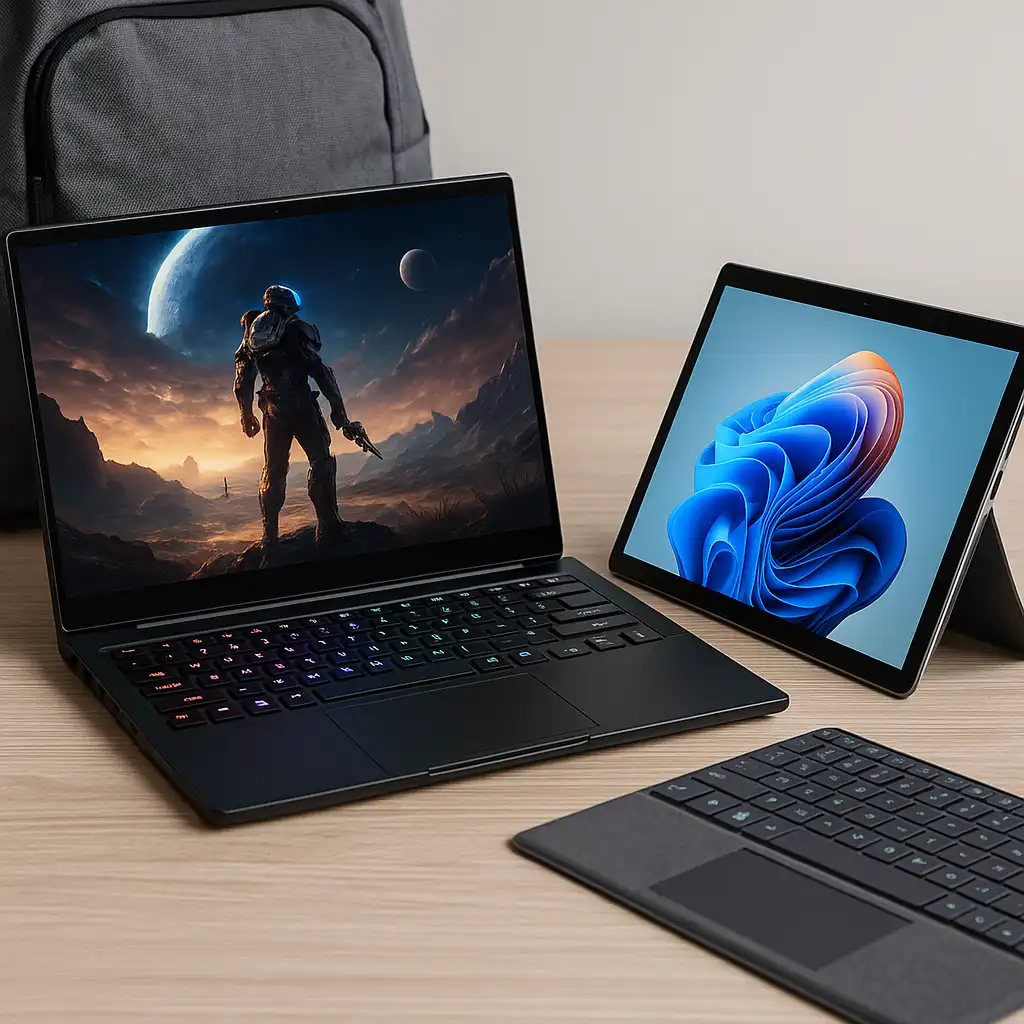
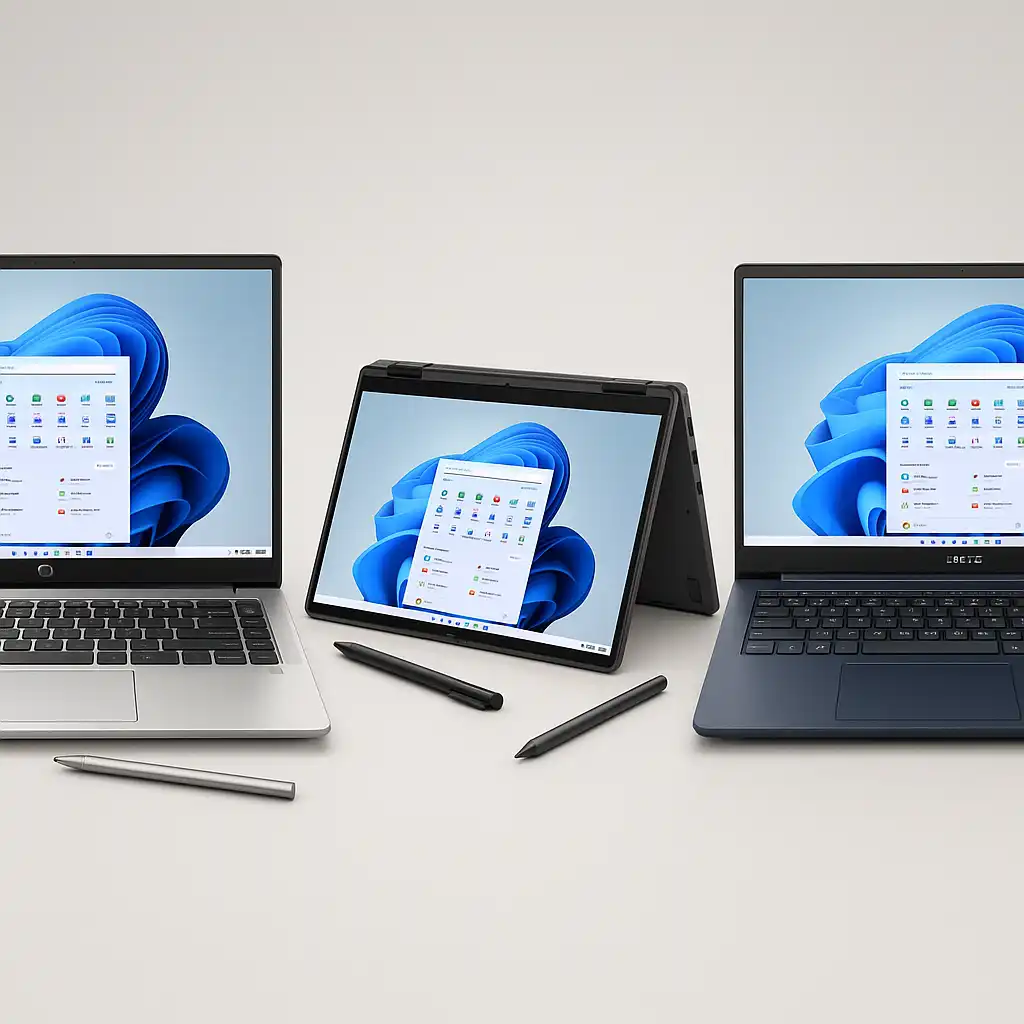
Touchscreen laptops are designed to support finger input, but not everyone uses that feature daily. Accidental taps, screen smudges, or external monitor setups often make disabling touch input more practical.
The good news is that Windows includes built-in controls to turn the touchscreen off without affecting keyboard or mouse functionality.
👉 If you’re comparing models and deciding whether touch is necessary, our guide to the best touchscreen laptops explains which types benefit most from touch support.
🔍 Why Disable a Touchscreen?
There are several common reasons users disable touch input:
- Prevent accidental taps during typing
- Use an external monitor and keyboard
- Preserve battery during long sessions
- Keep the screen cleaner with less direct contact
Touch capability remains built into the hardware—you’re simply turning off the input layer temporarily.
🔍 How to Disable Touchscreen in Windows 10 & 11
Follow these steps:
- Right-click the Start button.
- Select Device Manager.
- Expand Human Interface Devices.
- Find HID-compliant touch screen.
- Right-click it and select Disable device.
- Confirm the prompt.
This disables touch input immediately.
If you change your mind later, you can always reverse the process. Here’s how to enable touchscreen on laptop using the same Device Manager settings.
🔍 Does This Affect the Display?
No. Disabling the touchscreen only turns off input detection.
The display continues to function normally for viewing content, using a mouse, or typing on the keyboard.
🔍 Can You Disable It Permanently?
The Device Manager method keeps touch disabled until manually re-enabled.
For enterprise environments, IT administrators may use Group Policy or BIOS settings (when available) to restrict touch functionality at a deeper level.
Most home users won’t need those advanced methods.
🔍 What If the Option Is Missing?
If you don’t see “HID-compliant touch screen,” your laptop may not support touch—or drivers may not be installed properly.
Some models, especially traditional clamshell designs, don’t include touch hardware. If you’re unsure whether touch capability fits your needs, this guide on is touchscreen laptop worth it outlines practical pros and cons.
📌 Key Takeaways
- Touch input can be disabled through Device Manager
- The display continues working normally
- The change is reversible at any time
- No special software is required
- Useful for preventing accidental input
🟢 FAQs
Q: Will disabling touchscreen improve battery life?
The impact is usually minimal, but reducing touch input can slightly lower background activity.
Q: Can I re-enable it later?
Yes. Simply return to Device Manager and enable the device again.
Q: Does disabling touch affect stylus input?
Yes. Stylus input relies on the same touch digitizer layer.
Q: Is disabling touchscreen safe?
Yes. You’re only changing software settings, not hardware components.
✅ Conclusion
Disabling a touchscreen laptop is straightforward using built-in Windows tools. It doesn’t affect display quality or keyboard and mouse input, and the setting can be reversed anytime.
For users who prefer traditional input methods, turning off touch can reduce accidental taps and simplify daily workflow.