How to Enable Touchscreen on Laptop – Windows Setup Guide
Disclosure: This post contains affiliate links. LaptopVoyager.com participates in the Amazon Associates Program and may earn commissions on qualifying purchases, at no extra cost to you.
Last Updated: February 2026
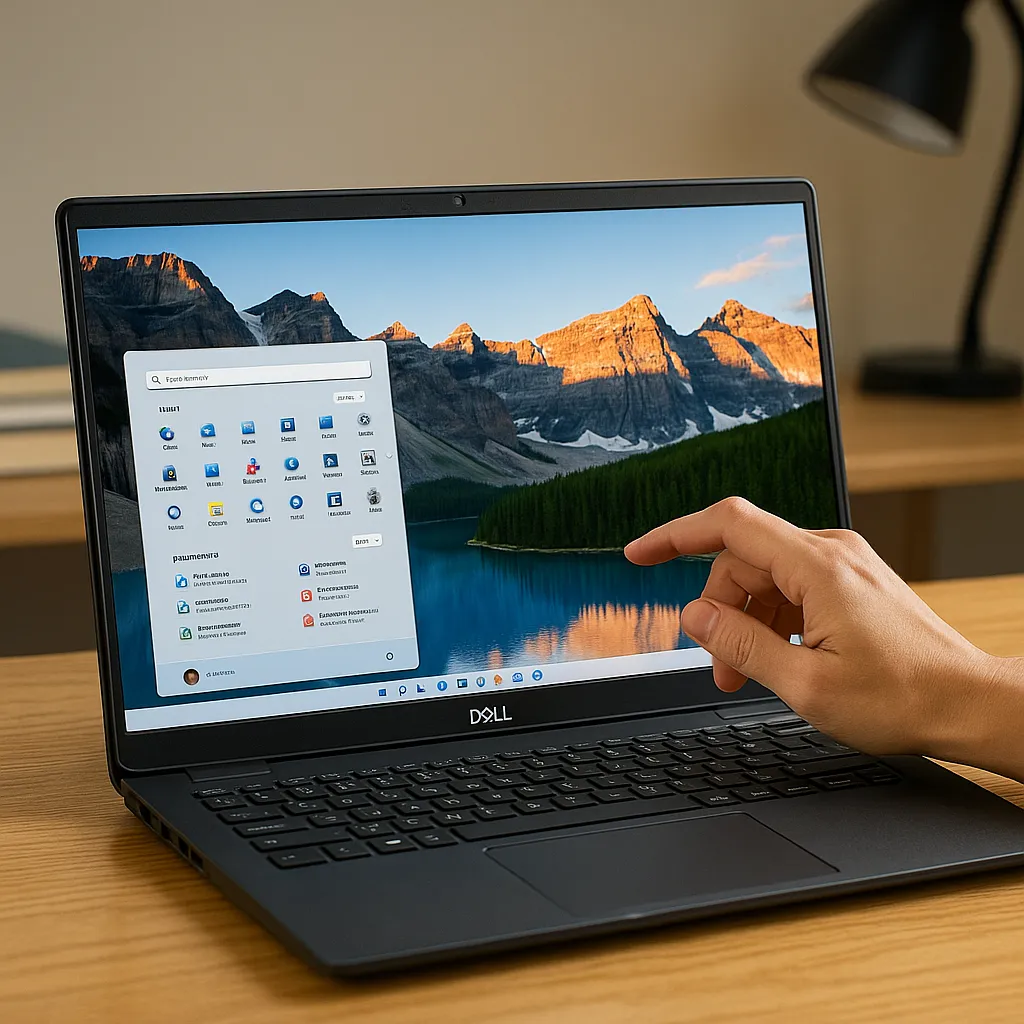
If your touchscreen laptop isn’t responding to taps or gestures, the feature may simply be disabled in system settings. In most cases, you can restore touch functionality through Windows without installing additional software.
Touch capability relies on built-in drivers and hardware recognition, so enabling it is usually a quick process.
👉 If you’re comparing different touch-enabled models, our guide to the best touchscreen laptops explains how touchscreen features vary by design and category.
🔍 Check If Your Laptop Supports Touch
Before enabling anything, confirm that your laptop actually includes touch hardware.
You can do this by:
- Opening System Settings
- Searching for Pen and Touch
- Checking whether touch input is listed as available
If the system reports no touch input, the laptop may not include touchscreen hardware.
🔍 Enable Touchscreen Using Device Manager
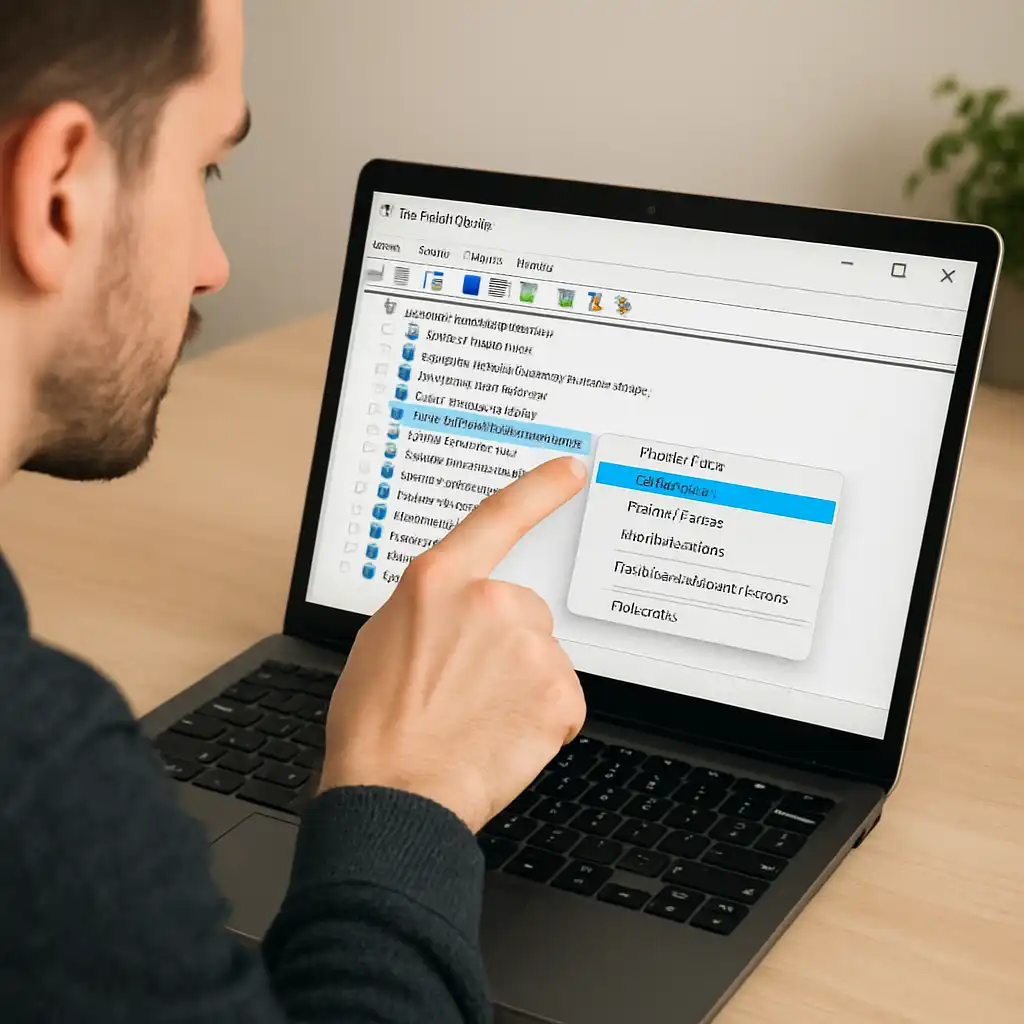
In Windows 10 and 11, follow these steps:
- Right-click the Start button.
- Select Device Manager.
- Expand Human Interface Devices.
- Look for HID-compliant touch screen.
- Right-click it and choose Enable device.
If the option says “Disable,” then touch input is already active.
🔍 Restart Your Laptop
After enabling the device, restarting ensures the driver loads correctly.
Many touch-related issues resolve automatically after a reboot.
If touch still doesn’t respond, updating display or chipset drivers may help.
🔍 What If the Option Is Missing?
If you don’t see “HID-compliant touch screen,” possible reasons include:
- The laptop does not support touch
- Drivers are missing or corrupted
- Touch input was disabled in BIOS (rare)
If you’re unsure whether your model includes touch support, this comparison of laptop touchscreen vs non-touch screen explains how to identify the differences.
🔍 When Would You Re-Enable Touch?
Common situations include:
- Switching from mouse to tablet-style navigation
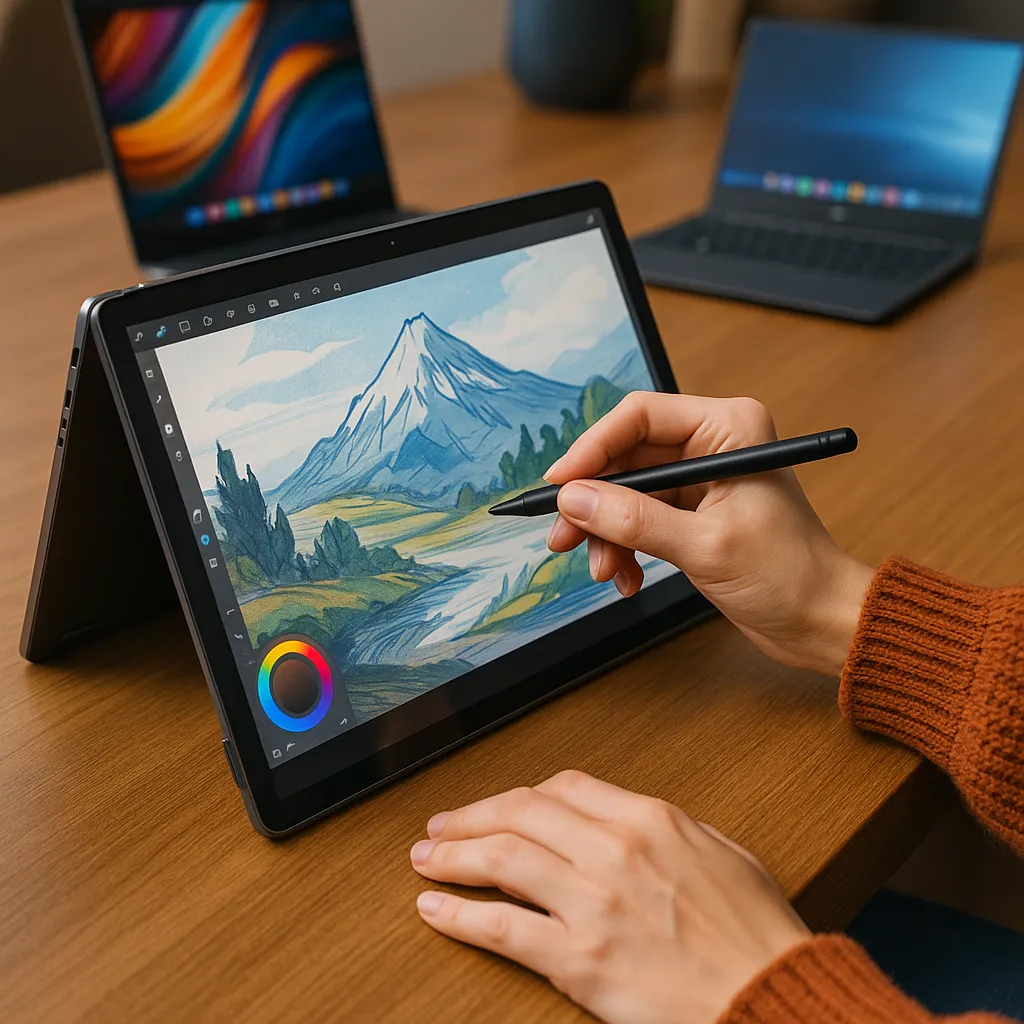
- Using a stylus for notes or drawing
- Restoring functionality after troubleshooting
If you previously turned off touch input, this guide complements our walkthrough on how to disable touchscreen on laptop.
📌 Key Takeaways
- Touchscreen input can be enabled in Device Manager
- Restarting may be required after changes
- Missing drivers can prevent touch detection
- Touch capability depends on built-in hardware
🟢 FAQs
Q: Why is my touchscreen not working?
It may be disabled in Device Manager or require driver updates.
Q: Is enabling touchscreen safe?
Yes. You’re simply activating a built-in input device.
Q: Do all laptops support touch?
No. Only models with integrated digitizer hardware support touchscreen input.
Q: Does enabling touch affect performance?
Touch functionality has minimal impact on system performance.
✅ Conclusion
Enabling a touchscreen laptop is usually as simple as activating the device in Windows settings. If the hardware supports touch input, restoring it takes only a few steps.
If touch remains unavailable, verifying hardware support and updating drivers are the next logical steps.