Best Docking Station for Dual Monitors – Top Picks for Work, Setup, and Performance
Disclosure: This post contains affiliate links. LaptopVoyager.com participates in the Amazon Associates Program and may earn commissions on qualifying purchases, at no extra cost to you.
Last Updated: April 2026
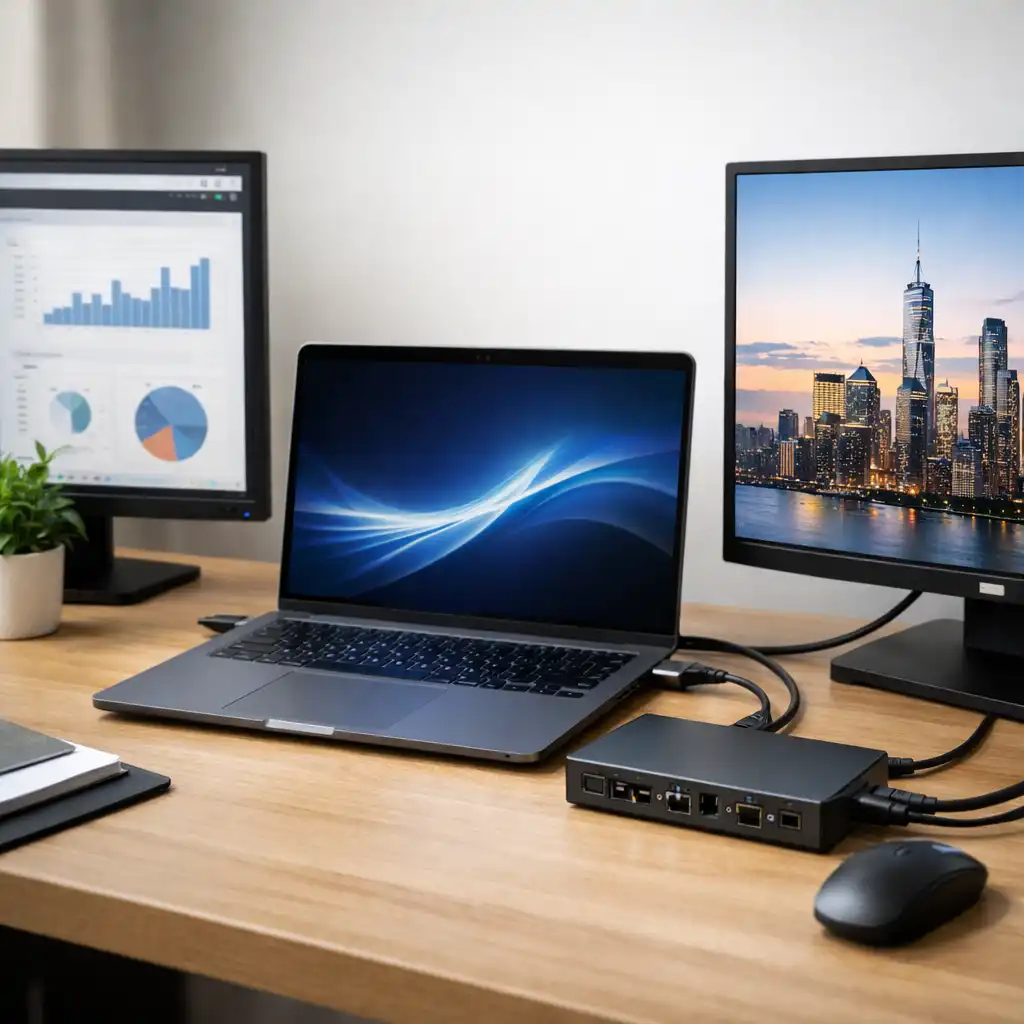
Dual monitor setups are one of the most effective ways to improve productivity, especially for multitasking, content creation, and remote work. A docking station makes this possible by expanding your laptop’s connectivity based on its hardware capabilities.
This guide covers the best docking stations for dual monitors based on specifications, bandwidth, and real-world setup needs, helping you choose the right option for your workflow.
👉 For a complete overview of accessories and setup options, see best laptop accessories
💰 Check Price & Availability
View on Amazon – UGREEN Revodok Max 213 Thunderbolt 4 Dock
View on Amazon – Kensington SD5000T5 Thunderbolt 5 Dock
View on Amazon – OWC Thunderbolt 5 Docking Station
These models represent different tiers of modern docking stations, from high-performance Thunderbolt 4 to next-generation Thunderbolt 5 solutions.
📋 Quick-View Comparison List
Best Overall: UGREEN Revodok Max 213 for balanced performance and dual 4K support
Best Premium Option: Kensington SD5000T5 for next-generation bandwidth and dual 6K displays
Best for Power Users: OWC Thunderbolt 5 Dock for advanced multi-display and professional setups
🔍 What Makes a Docking Station Good for Dual Monitors
Dual monitor performance depends on bandwidth, display output support, and compatibility with your laptop’s ports.
According to manufacturer specifications, key factors include:
- Display output type (HDMI, DisplayPort, Thunderbolt)
- Maximum resolution and refresh rate
- Power delivery capability
- Chipset support (DisplayLink vs native output)
Some laptops support multiple displays natively, while others require DisplayLink-based docks to enable additional screens.
👉 For a deeper comparison, see docking station vs usb hub
🔍 Thunderbolt vs USB-C Docking Stations
Not all USB-C ports support dual monitors equally. Thunderbolt-based docks offer higher bandwidth and more reliable multi-display performance.
Based on specifications:
- Thunderbolt 4 supports dual 4K displays at 60Hz
- Thunderbolt 5 increases bandwidth significantly for higher resolutions
- Standard USB-C docks may require DisplayLink for dual monitors
This makes Thunderbolt docks the preferred choice for users who need stable multi-monitor setups.
👉 For a full breakdown, see usb-c hub vs docking station
🔍 Dual Monitor Compatibility and Laptop Limits
Dual monitor support depends heavily on your laptop’s hardware.
According to manufacturer documentation:
- Some systems support only one external display natively
- Others allow two or more displays via Thunderbolt
- macOS devices may have specific limitations depending on the chip
Understanding these limits is essential before choosing a docking station.
📦 UGREEN Revodok Max 213 Thunderbolt 4 Dock
This model is equipped with Thunderbolt 4 connectivity, designed to support dual 4K displays at 60Hz.
Based on specifications, it includes:
- 13-in-1 port configuration
- 90W power delivery
- 2.5GbE ethernet support
This makes it suitable for users who need a balanced combination of performance, connectivity, and portability for dual monitor setups.
📦 Kensington SD5000T5 Thunderbolt 5 Dock
This docking station uses next-generation Thunderbolt 5 technology, offering significantly higher bandwidth.
According to manufacturer specifications, it supports:
- dual 6K displays at 60Hz
- up to 80Gbps bandwidth
- up to 140W power delivery
This model is designed for users who want the latest connectivity standard and higher-resolution display support.
📦 OWC Thunderbolt 5 Docking Station
This docking station is designed for advanced and professional setups, focusing on maximum display capability.
Based on specifications, it supports:
- up to three 8K displays
- 2.5GbE networking
- fanless aluminum design
This makes it suitable for power users and creative professionals who require extensive display configurations.
📌 Key Takeaways
- Dual monitor performance depends on bandwidth and display support
- Thunderbolt docks provide more reliable multi-monitor setups
- DisplayLink is useful for extending compatibility on limited systems
- Higher-end docks support higher resolutions and more displays
🟢 FAQs
Q: Do all docking stations support dual monitors?
No, support depends on the dock’s specifications and your laptop’s hardware capabilities.
Q: Is Thunderbolt required for dual monitors?
Not always, but Thunderbolt provides more stable and higher-performance multi-display support.
Q: Can USB-C hubs support dual monitors?
Some can, but many require DisplayLink technology and may have limitations.
Q: Do MacBooks support dual monitors with docking stations?
Some models have limitations depending on the chip, and may require specific solutions.
✅ Conclusion
The best docking station for dual monitors depends on your laptop’s capabilities and your performance needs. Based on specifications, Thunderbolt docks offer the most reliable experience, while newer standards like Thunderbolt 5 provide higher bandwidth for advanced setups.
Choosing the right docking station allows you to expand your workspace efficiently and build a more productive multi-monitor environment.