
Laptop SSD Upgrade Guide: Compatibility, Types & Installation
Disclosure: This post contains affiliate links. LaptopVoyager.com participates in the Amazon Associates Program and may earn commissions on qualifying purchases, at no extra cost to you.
Last Updated: September 2026
A laptop SSD upgrade can increase storage capacity and improve storage-related performance, but choosing the right drive requires more than simply looking at advertised speeds. Your laptop’s supported interface, M.2 form factor, available slots, and storage limits all affect which upgrades are possible.
This guide explains the basics of laptop SSD upgrades and connects you to our detailed resources covering SSD types, compatibility, performance, installation, and drive selection.
🔍 What Is an SSD in a Laptop?
An SSD, or solid-state drive, stores the operating system, applications, documents, and other data on a laptop.
Unlike traditional hard disk drives, SSDs have no mechanical moving parts. Modern laptops commonly use compact M.2 SSDs, although SATA-based 2.5-inch drives can still be found in older systems.
The interface and physical format vary between laptops, so identifying the storage already installed is a useful first step before planning an upgrade.
👉 Start with What Does SSD Mean on a Laptop? for a closer look at how solid-state storage works.
🔍 SSD vs HDD: What’s the Difference?
SSDs and hard disk drives perform the same basic storage function, but their underlying technology is very different.
An HDD stores data on rotating magnetic platters, while an SSD uses flash memory. The lack of mechanical components allows SSDs to provide faster access times and makes them particularly suitable for modern portable computers.
Other factors, including capacity, interface, workload, and the age of the laptop, should also be considered when comparing the two storage technologies.
👉 See Laptop SSD vs HDD for a complete comparison.
🔍 Are SSDs More Reliable Than HDDs?
SSDs eliminate several mechanical components found inside traditional hard drives, including spinning platters and moving read/write heads.
However, that does not mean an SSD cannot fail. NAND flash has finite write endurance, while controller problems, electrical faults, firmware issues, and other failures can affect solid-state drives.
Reliability therefore depends on more than the storage technology alone.
👉 Our guide Are SSD Drives More Reliable Than HDD? examines the differences in more detail.
🔍 Does an SSD Improve Laptop Performance?
Replacing a mechanical hard drive with an SSD can significantly improve storage-related responsiveness because SSDs provide much faster data access.
If a laptop already has a modern NVMe SSD, moving to a faster SSD may produce a less noticeable difference in everyday tasks. Benefits depend on the existing drive, interface, workload, and other hardware.
An SSD also does not directly make the CPU or GPU faster, so it is important to distinguish storage performance from overall computing performance.
👉 Learn more in Does SSD Improve Laptop Performance?.
🔍 How Do You Know If Your Laptop Has an SSD?
Before upgrading, determine what type of storage is currently installed.
Windows provides several ways to identify storage devices, while the laptop manufacturer’s specifications or service documentation may provide more detailed information about supported drive types and available slots.
Knowing whether the laptop currently uses an HDD, SATA SSD, or NVMe SSD can help narrow down your upgrade options.
👉 Follow How to Check If Your Laptop Has SSD or HDD for the main methods.
🔍 Can You Add an SSD to Your Laptop?
Whether you can add an SSD depends on the laptop’s internal design.
Some laptops provide an unused M.2 slot, allowing another SSD to be installed while keeping the original drive. Others provide only one replaceable storage slot, meaning the existing SSD must be replaced to increase capacity.
Thin laptops can also use soldered storage or designs with limited upgradeability.
Before buying a drive, check the manufacturer’s specifications for the exact laptop model, including supported M.2 sizes, SATA or NVMe compatibility, PCIe generation, available slots, and capacity limits.
👉 See Can I Add an SSD to My Laptop? for a detailed compatibility guide.
🔍 SATA vs NVMe SSDs
Laptop SSDs can use different interfaces.
SATA SSDs are commonly associated with 2.5-inch drives and some older M.2 SSDs. They can provide a substantial upgrade over mechanical hard drives but are limited by the SATA interface.
NVMe SSDs communicate over PCI Express and can provide considerably higher bandwidth. Modern laptop NVMe drives commonly use the M.2 form factor.
However, M.2 describes a physical form factor rather than automatically meaning NVMe. This distinction is important when checking compatibility.
🔍 PCIe Gen3, Gen4, and Gen5 Explained
NVMe SSDs can operate across different PCIe generations, with newer generations providing greater available bandwidth.
PCIe Gen4 SSDs are common in modern laptops and can provide high sequential transfer speeds. PCIe Gen5 drives can reach considerably higher advertised speeds, but the laptop needs compatible hardware to take advantage of that additional bandwidth.
A faster-generation SSD does not necessarily provide a proportional improvement in everyday laptop use. Compatibility, workload, capacity, power consumption, and thermal behavior can be equally important considerations.
🔍 What SSD Capacity Do You Need?
The right storage capacity depends on how the laptop is used.
1TB can provide a practical balance for general computing, applications, documents, games, and media. Users with larger game libraries, video projects, photo collections, or other storage-intensive workloads may prefer 2TB or more.
For readers already considering a specific capacity, see Best 1TB SSD for Laptops or Best 2TB SSD for Laptops.
🔍 How to Choose an SSD for Your Laptop
Compatibility should come before advertised performance when choosing a laptop SSD.
Check the supported physical size, interface, PCIe generation, available space, and maximum capacity specified for the laptop. Power consumption and thermal requirements can also matter in compact systems.
For readers ready to compare current drive options, see Best Laptop SSD Upgrade for NVMe SSD choices covering different performance levels.
You can also compare additional options in Best Internal SSD for Laptops.
🔍 Choosing an SSD for Gaming or Video Editing
Storage requirements can change significantly with the workload.
Modern games can occupy substantial amounts of storage, while video editing can involve large source files, project caches, and frequent transfers. Capacity and sustained storage performance may therefore matter more for these workloads than for basic web browsing or office applications.
For more specialized options, see Best SSD for Laptop Gaming and Best SSD Drive for Video Editing.
If replacing the internal drive is not practical, Best External SSD for Gaming Laptops covers portable storage alternatives.
🔍 What If You Prefer a Laptop With an SSD Already Installed?
Not everyone needs to upgrade an existing computer.
If you are replacing an older laptop, buying a system with sufficient SSD storage already installed can eliminate the need to open the computer or migrate the existing drive.
See Best Laptop Computer With SSD Drive for current options, or Best Budget Laptop With SSD Drive if affordability is the priority.
🔍 How Do You Install an SSD in a Laptop?
The installation process depends on the laptop and SSD type.
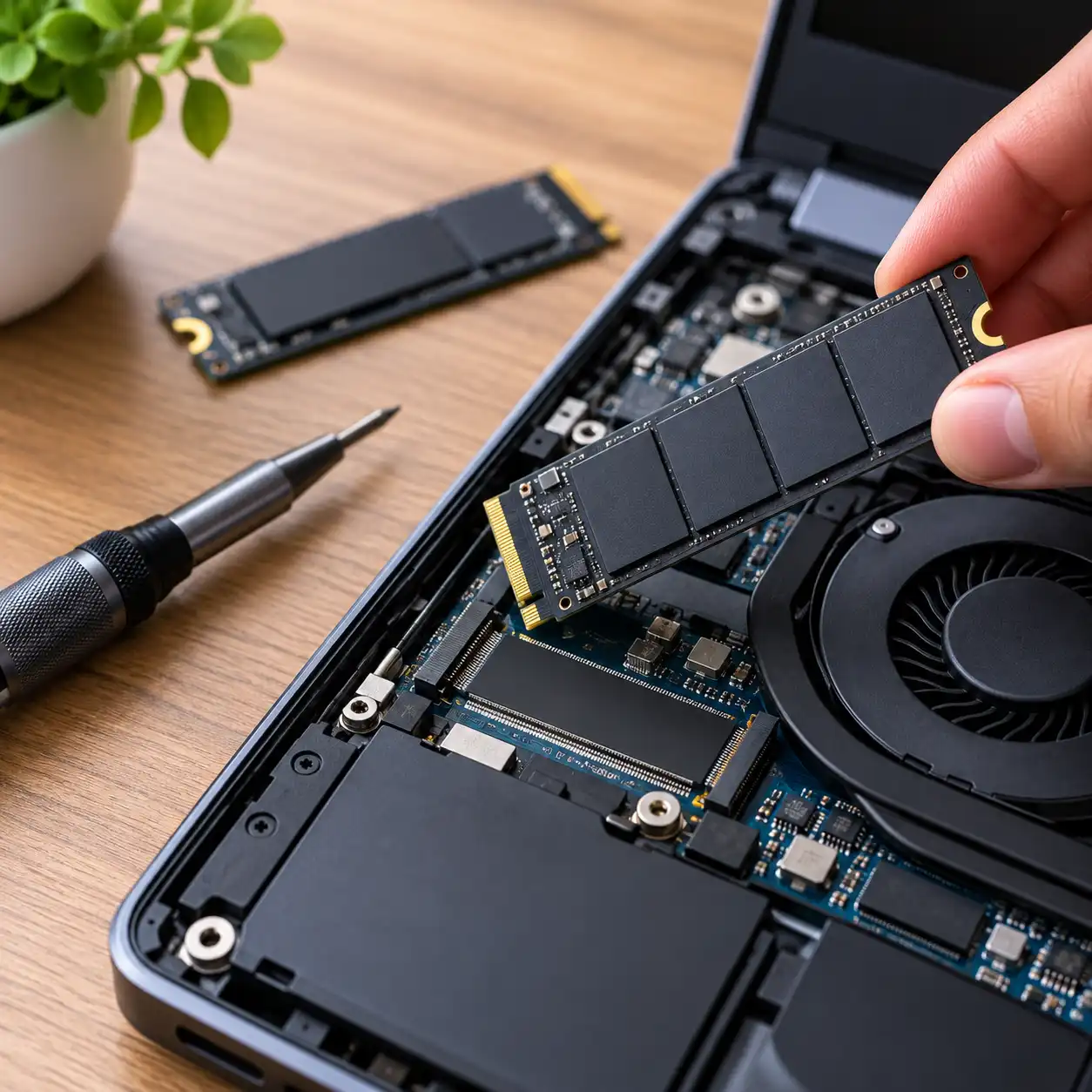
For an M.2 SSD, installation generally involves shutting down the laptop, disconnecting power where appropriate, removing the bottom cover, locating the M.2 slot, installing the drive, securing it, and reassembling the laptop.
The exact procedure can vary considerably. Manufacturer service documentation should take priority for disassembly instructions, compatible drives, screw locations, and other model-specific requirements.
👉 Follow How to Install an SSD in a Laptop for the complete process.
🔍 Replacing a Hard Drive With an SSD
Older laptops equipped with mechanical hard drives can often benefit substantially from moving to solid-state storage.
The process can involve replacing the existing 2.5-inch HDD with a compatible SATA SSD. Depending on the setup, you may also need to clone the existing drive or perform a fresh operating-system installation.
Compatibility should be verified before purchasing the replacement drive.
👉 See How to Replace a Hard Drive With an SSD for the step-by-step considerations.
📌 Key Takeaways
- SSD upgrades can increase laptop storage capacity and improve storage-related performance.
- Check your laptop’s storage interface, M.2 form factor, available slots, PCIe support, and capacity limits before buying a drive.
- NVMe SSDs use PCI Express and can provide substantially higher bandwidth than SATA-based storage.
- Moving from an HDD to an SSD generally represents a larger storage-performance upgrade than replacing one modern NVMe SSD with another.
- 1TB and 2TB are common capacity choices, but the appropriate size depends on your workload.
- Manufacturer specifications and service documentation should take priority when determining compatibility and installation procedures.
🟢 Frequently Asked Questions
Q: Can I upgrade the SSD in any laptop?
No. Upgradeability depends on the laptop design. Some models have replaceable M.2 or 2.5-inch drives, while others use soldered storage or have limited expansion options.
Q: Can I install a Gen4 SSD in a Gen3 laptop?
PCIe generations can offer backward compatibility in appropriate configurations, but the SSD will be limited by the capabilities of the laptop’s interface. Verify compatibility for the specific laptop and drive before purchasing.
Q: Is NVMe better than SATA for a laptop?
NVMe provides substantially more available interface bandwidth than SATA. Whether that translates into a noticeable everyday improvement depends on the workload and existing storage.
Q: Is 1TB enough for a laptop SSD?
For many users, 1TB provides sufficient capacity for Windows, applications, documents, and a moderate collection of games or media. Storage-intensive workloads may benefit from 2TB or more.
Q: Will upgrading my SSD make my laptop faster?
It can improve storage-related performance, particularly when replacing an HDD or slower SSD. It does not directly increase CPU or GPU performance.
Do I need to reinstall Windows after changing my SSD?
Not necessarily. Depending on the upgrade, the existing installation may be cloned to the replacement drive. A fresh operating-system installation is another option.
Q: Can a laptop have two SSDs?
Some laptops provide two or more storage slots, while others provide only one. Check the specifications or service documentation for your exact model.
✅ Conclusion
A laptop SSD upgrade can be one of the most useful storage improvements available, but compatibility should always come before advertised speed.
Start by identifying your existing storage and checking the laptop manufacturer’s specifications. From there, you can determine whether you need SATA or NVMe storage, the appropriate M.2 form factor and PCIe generation, and how much capacity makes sense for your workload.
Use this guide as the starting point for the LaptopVoyager SSD series, then follow the dedicated resources above for compatibility checks, SSD comparisons, performance information, drive selection, and installation.

18 Comments
Comments are closed.