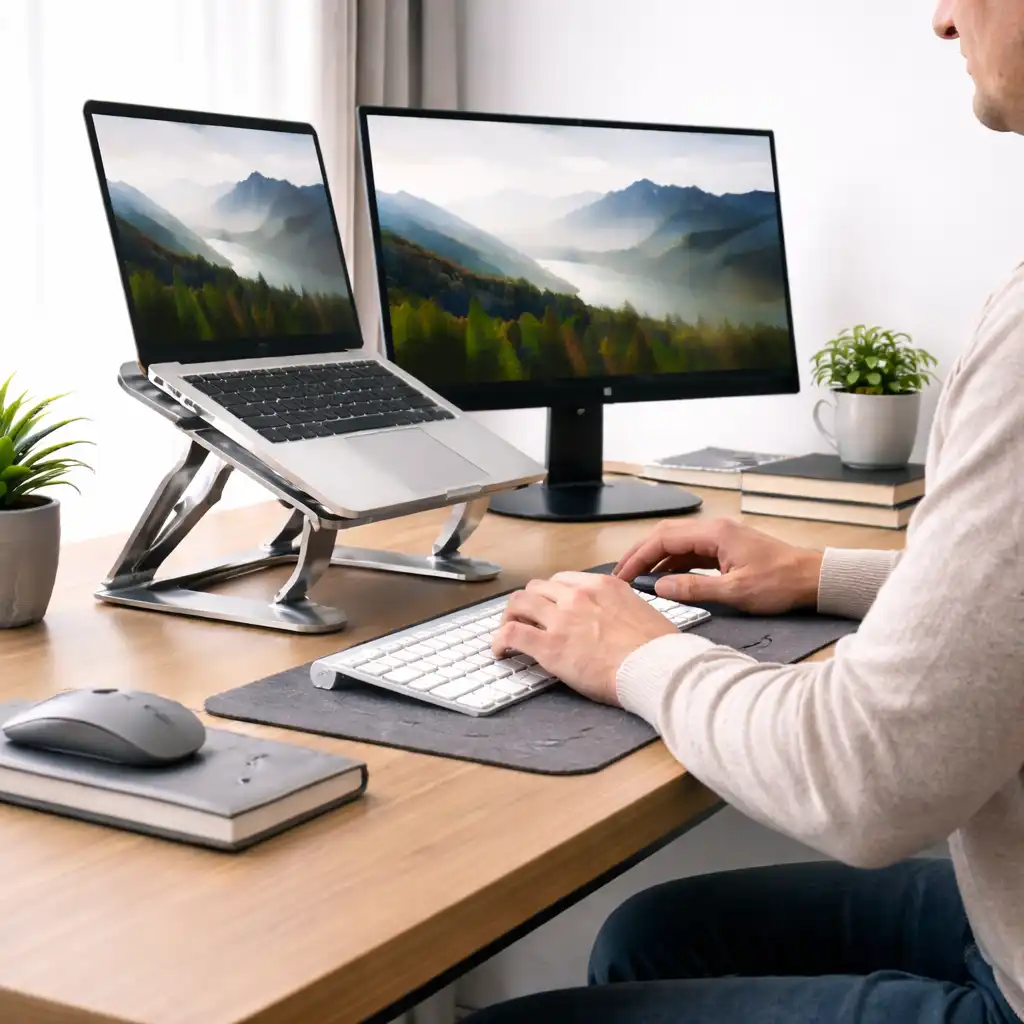
Laptop Screen Height for Proper Posture – Ideal Position Explained
Disclosure: This post contains affiliate links. LaptopVoyager.com participates in the Amazon Associates Program and may earn commissions on qualifying purchases, at no extra cost to you.
Last Updated: April 2026
Laptop screens are often positioned too low when used directly on a desk, which can lead to awkward viewing angles during long sessions. This makes screen height one of the most important factors in a comfortable desk setup.
Adjusting your laptop screen to the correct height helps support a more natural head and neck position. This guide explains how to position your screen properly based on common ergonomic recommendations.
👉 For a full setup overview, see our guide to laptop ergonomics and posture
📌 Key Takeaways
- Screen height should align close to eye level for better posture
- The top of the display is typically at or slightly below eye level
- Viewing distance and angle also affect comfort
- External stands and monitors make positioning easier
🔍 Why Screen Height Matters
Screen height directly affects how you position your head and neck. When the screen is too low, you may tilt your head downward for extended periods.
According to ergonomic workstation guidelines, this positioning can increase strain over time. Proper screen placement helps maintain a more neutral alignment while working.
🔍 Ideal Laptop Screen Height
For most desk setups, the recommended screen position is:
- The top of the screen at or slightly below eye level
- The center of the screen slightly below your line of sight
- A slight downward viewing angle
This positioning supports a natural head posture without forcing you to look too far down or up.
🔍 Viewing Distance and Angle
Screen height works together with viewing distance. Placing the screen too close or too far can affect how you hold your posture.
General guidance includes:
- About an arm’s length distance from the screen
- A slight downward viewing angle
- Minimal glare from lighting sources
These adjustments help create a more comfortable viewing experience during extended use.
🔍 Using a Laptop Stand for Better Positioning
Laptop stands are commonly used to raise the screen to the correct height. Based on design specifications, many stands are built to elevate the display while maintaining stability.
👉 For a setup that combines screen height and typing comfort, see laptop ergonomics setup for desk work
Raising the laptop helps align the screen, but it also changes keyboard position. This is why stands are often paired with external keyboards.
🔍 Laptop vs Monitor Height Adjustments
External monitors typically offer more flexibility in height adjustment compared to laptops. Many include adjustable stands or support monitor arms.
Laptop screens, on the other hand, usually require additional accessories to reach proper height.
According to manufacturer design features, monitors are built with adjustable positioning in mind, while laptops prioritize portability.
🔍 Common Mistakes to Avoid
Incorrect screen positioning can reduce the benefits of an ergonomic setup.
Common issues include:
- Placing the screen too low on the desk
- Positioning the screen too far away
- Using steep angles that force awkward viewing positions
- Ignoring glare and lighting conditions
Avoiding these mistakes helps maintain a more consistent posture throughout the day.
🟢 FAQs
Q: What is the correct laptop screen height?
The top of the screen should be at or slightly below eye level in most desk setups.
Q: Is eye-level screen height always necessary?
A slightly lower position is often recommended to allow a natural downward viewing angle.
Q: Can I use a laptop without a stand?
Yes, but it may be harder to achieve proper screen height without additional support.
Q: Are external monitors better for screen positioning?
They usually provide more adjustment options, making it easier to align the screen correctly.
✅ Conclusion
Setting the correct laptop screen height helps support a more natural head and neck position during desk work. Based on ergonomic guidelines, aligning the screen close to eye level with a slight downward angle improves overall comfort.
Small adjustments to height, distance, and angle can make a noticeable difference in long-term usability.